
Dulo TV Accessibility: Watching Comfortably on Android
An accessibility guide for Dulo TV on Android covering larger text, caption preferences, display settings, audio help, and simple habits that make browsing and watching comfortable for every viewer.
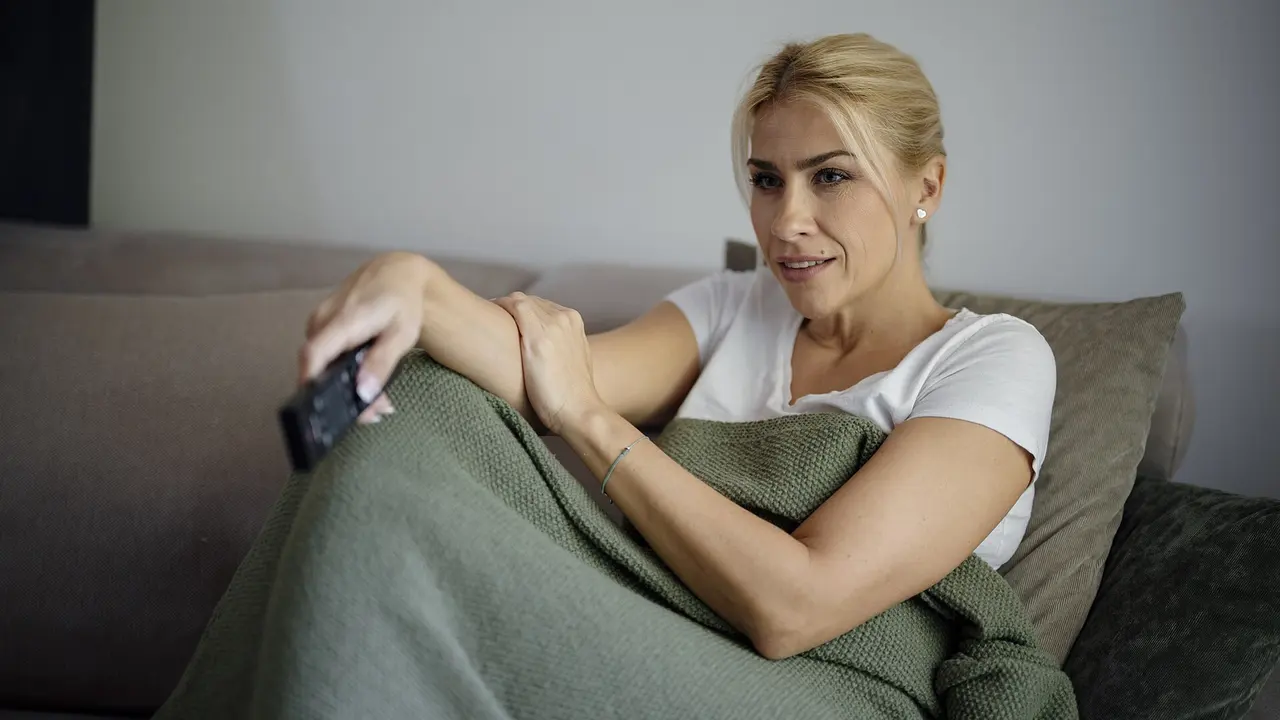
An entertainment app should be comfortable for every viewer, including those who need larger text, clearer captions, stronger contrast, or a slower pace than the default design assumes. Android carries much of this support at system level, ready to help every app at once.
The challenge is that accessibility settings are scattered. Text size lives in one menu, captions in another, and colour options in a third, so many viewers never find the combination that would transform their experience.
This guide gathers the useful settings in one place, explains what each one changes inside a browsing and playback app, and suggests a setup order that avoids confusion.
For the complete homepage guide, visit the complete guide to Dulo TV.
Larger Text and Display Size
Android offers two separate levers. Font size enlarges text itself, while display size scales the whole interface, including buttons and touch targets. Viewers who struggle to read posters and menus usually need a step of each.
Raise them one step at a time and reopen the app between steps. One step too far makes menus scroll awkwardly, and the right setting is the largest one that still feels tidy.
Accessibility benefits arrive disguised as comfort for everyone: the larger text set for a grandparent gets kept by the whole family, and captions switched on for one viewer stay on for the whole household's quiet evenings. Set them without ceremony. Dulo TV keeps the whole routine in one place, so none of these steps sends you hunting through other apps.
Captions for Every Viewer
Captions help far more people than they were designed for: viewers with hearing loss, parents watching beside a sleeping baby, and anyone in a noisy kitchen. Android caption preferences let you set size, font, and background once for supported players.
Inside playback, remember that the title itself must provide a caption track. System preferences style the text; they cannot invent it, so check the player's caption icon on each new title.
Dulo TV's consistent title page layout is itself an accessibility feature worth using deliberately: once a viewer learns where ratings, genres, and trailers live on one page, they know it on every page, and motor and memory both get an easier job. That is the side of Dulo TV most viewers end up valuing most.
For the complete caption walkthrough, read Dulo TV Subtitles and Captions Guide.
Contrast, Colour, and Brightness
High contrast text, colour correction for common colour vision differences, and colour inversion all live under Android accessibility settings. Even viewers without a diagnosis benefit from stronger contrast on small poster text in bright rooms.
Brightness discipline helps too. A screen bright enough for the room, without glare, beats maximum brightness, which washes out dark film scenes and tires eyes quickly.
Voice control deserves a trial alongside touch: Android's voice access can open apps, scroll shelves, and select titles by spoken number labels. For viewers whose hands tire, it converts browsing from a chore back into a pleasure. In Dulo TV the same approach works on every visit, not just the first.
Audio Help
Mono audio, found in accessibility settings, folds stereo into one channel so nothing is lost when a viewer uses a single earbud or hears better in one ear. It is a small setting with an outsized effect on dialogue clarity.
Dialogue also benefits from the room: a small Bluetooth speaker near the seating position beats a phone speaker across the room at any volume, and captions remain the reliable backup when speech is unclear.
Seating and distance finish what settings start. A phone is read at thirty centimetres and a tablet at fifty, and text sized for the wrong distance fails despite every correct setting. Match the device to the chair, then set the size. Dulo TV rewards the habit every time you return to it.
- Try mono audio for single earbud listening
- Place a speaker near seating for dialogue
- Use captions as a dialogue backup
- Lower background noise in the room first
A Comfortable Setup Order
Change one thing at a time, in this order: display and font size first, captions second, contrast and colour third, audio last. Testing each change inside the app before adding the next prevents the confusion of five new behaviours at once.
Write down what you changed. A short note in a safe place makes the setup easy to restore after a phone upgrade or a reset.
Involve the viewer in every adjustment, one change at a time, with the app open in front of both of you. Settings imposed silently get undone mysteriously; settings chosen together get defended by their owner.
- 1
Set display size and font size
- 2
Set caption style and size
- 3
Adjust contrast or colour correction
- 4
Check mono audio if needed
- 5
Note every change you made
Accessibility Summary
Comfort is a configuration, not a talent. Android already ships the tools; the app simply needs a viewer, or a family member helping them, to spend fifteen minutes arranging those tools once.
Share this guide's order with anyone setting up a phone for a parent or grandparent. The sequence works for every app on the device, not just this one.
The measure of success is independence: the viewer browses, chooses, and watches without needing to ask for help with the device. Every setting in this guide exists to buy exactly that.
Frequently Asked Questions
Can I make the app text bigger?
Yes, through Android rather than the app. Raise font size and display size under accessibility or display settings, one step at a time, and the app interface scales with the system. That is how Dulo TV handles it today.
Do caption settings work on every title?
System caption preferences style captions on supported players, but the title must include a caption track. If the player shows no caption option, that video was published without one. Everything above reflects Dulo TV in its current form.
What helps if dialogue is hard to follow?
Captions are the most reliable help. Mono audio in accessibility settings also helps single earbud listeners, and a small speaker near your seat beats raising phone volume. In Dulo TV, that is the whole of it.

Share this page