
Using Dulo TV on a Smart TV: Casting and Mirroring Guide
How to enjoy Dulo TV content on a bigger screen with casting and screen mirroring, what you need on Android and your TV, and how to fix the common picture and connection problems.
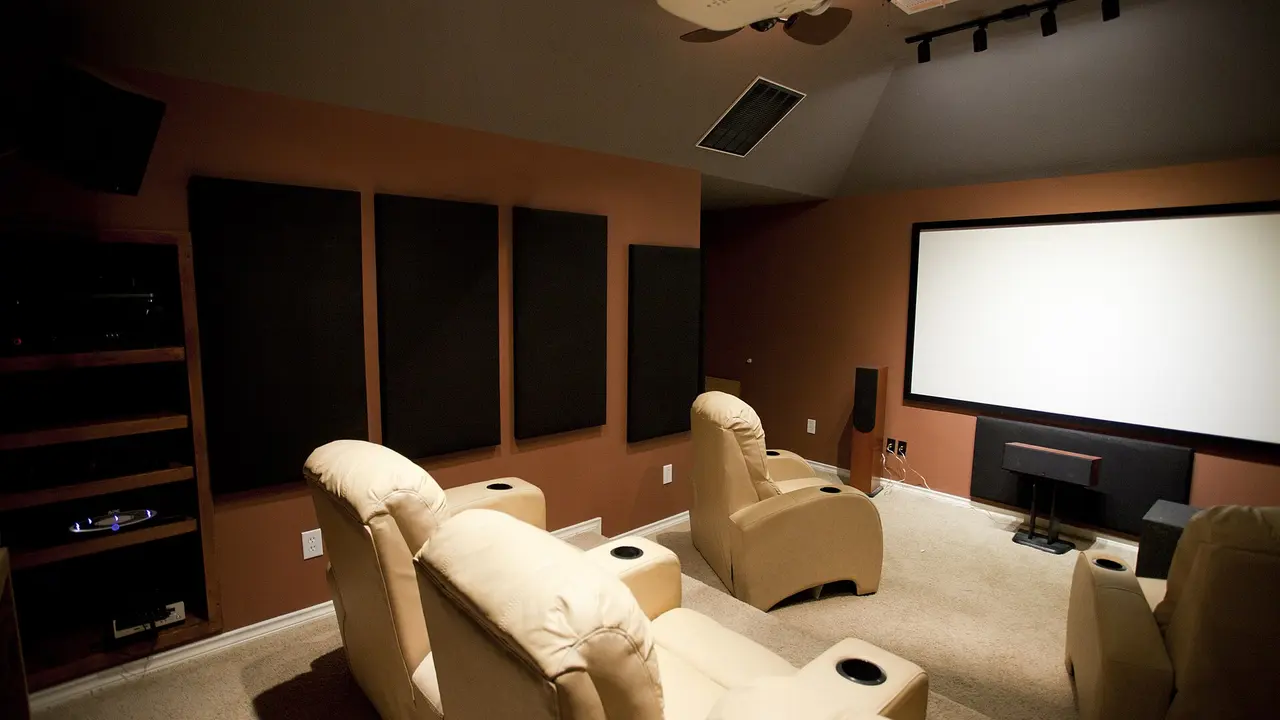
A phone is perfect for finding something to watch and less perfect for sharing it. The moment two or three people gather around one small screen, sending the picture to the television becomes the obvious move.
Android offers two different routes to the big screen, and they behave differently. Casting hands the stream to the TV, while mirroring copies the phone screen exactly, notifications and all. Choosing the right route matters.
This guide explains both methods, the requirements for each, and the fixes for the usual problems: the TV not appearing, the picture stuttering, and sound playing from the wrong device.
For the complete homepage guide, visit Dulo TV download and features guide.
Casting Versus Mirroring
Casting is the cleaner option when it is available. The TV receives the stream directly, the phone becomes a remote control, and you can lock the phone or use other apps while the television plays.
Mirroring is the universal fallback. Everything on the phone screen appears on the TV in real time, which works with any app but also shows incoming notifications and depends entirely on the phone connection.
The television's own settings matter more than viewers expect: many sets apply motion smoothing and aggressive picture processing to cast inputs. A film mode or game mode on that input usually gives a truer, calmer picture for trailers and films alike. Dulo TV keeps the whole routine in one place, so none of these steps sends you hunting through other apps.
What You Need
Both routes need the phone and TV on the same WiFi network. The TV needs either built in casting support, a streaming stick or box that provides it, or mirroring support such as Miracast on many Android televisions.
A stable router signal matters more than raw internet speed for local casting. If the TV sits far from the router, expect the occasional stutter during busy evening hours.
Keep the phone's role clear once casting starts. It is the remote and the guide: browse Dulo TV on the phone between titles, but let the television finish the current stream before queue jumping, because rapid switching is how cast sessions fall apart. That is the side of Dulo TV most viewers end up valuing most.
- Android phone with the app installed
- TV with casting or mirroring support, or a casting stick
- Phone and TV on the same WiFi network
- A reasonably strong router signal in the room
How to Cast Step by Step
Start the trailer or title on the phone first and confirm it plays normally. Then use the cast option inside the player or the Android quick settings cast tile, choose the television, and give the connection a few seconds to settle.
Once the TV takes over, test the phone controls: pause, resume, and volume. Confirming control at the start avoids a scramble in the middle of a film.
Guests change the etiquette. If visitors will choose, mirroring the browsing itself to the TV turns selection into a shared event, while casting only the final choice keeps the messy middle private. Both are legitimate; pick per audience. In Dulo TV the same approach works on every visit, not just the first.
- 1
Play the title on the phone
- 2
Open cast from the player or quick settings
- 3
Select your TV from the list
- 4
Wait for the picture to settle
- 5
Test pause and volume controls
When the TV Does Not Appear
A missing TV is almost always a network mismatch. Phones connected to a guest network, a 5 GHz band the TV cannot see as the same network in some router setups, or a VPN running on the phone all hide the TV from the cast list.
Restarting the router sounds excessive but clears stale device lists remarkably often. Also wake the TV fully; many sets stop advertising themselves in deep standby.
Sound deserves a routing check at the start, not midway. Confirm the television or its soundbar owns the audio, set a comfortable level with a loud scene, and the evening is safe from the classic whispered dialogue, deafening advert whiplash. Dulo TV rewards the habit every time you return to it.
For general connection checks that also help here, see Dulo TV Not Working: Common Fixes.
Picture and Sound Fixes
If the picture stutters while the phone plays smoothly, lower the stream quality one level and move the phone closer to the router. If sound comes from the phone while the picture is on the TV, disconnect and reconnect the cast session once.
Mirroring adds a small delay by design, so a slight lip sync gap on mirrored content is normal. Casting, which hands over the stream, should stay in sync.
A wired versus wireless footnote: if your router offers it, a television on a wired connection casts with noticeably fewer stumbles. The phone still browses wirelessly; only the heavy video leg goes down the cable.
Privacy While Mirroring
Mirroring shows everything, including message previews and notification banners. Turn on Do Not Disturb before a family film, and close apps you would rather not broadcast to the room.
Casting avoids the problem almost entirely, which is one more reason to prefer it whenever the TV supports it.
Privacy cuts the other way too: casting a stream keeps your notifications private, but the television's own recent apps row may advertise what was watched. On shared sets, that row is worth knowing about before a surprise party screening.
Big Screen Summary
Find on the phone, watch on the television: that division of labour makes the app feel twice as useful. Prefer casting, fall back to mirroring, and keep both devices on one healthy network.
With the setup done once, future sessions take seconds, and the only remaining decision is what to watch.
End sessions deliberately: stop the cast from the phone rather than switching the TV off mid stream. Devices remember tidy endings, and the next connection is faster for it.
Frequently Asked Questions
Why does my TV not show up in the cast list?
The phone and TV must share the same WiFi network. Guest networks, an active VPN on the phone, and a TV in deep standby are the most common reasons a TV stays hidden. That is how Dulo TV handles it today.
Is casting better than mirroring?
Casting is usually better because the TV plays the stream directly and the phone stays free. Mirroring works with almost anything but shows notifications and depends on the phone connection. Everything above reflects Dulo TV in its current form.
Why is mirrored sound slightly delayed?
Mirroring copies the screen in real time and always carries a small delay. A mild lip sync gap is normal for mirroring, while casting should stay in sync. In Dulo TV, that is the whole of it.




Share this page